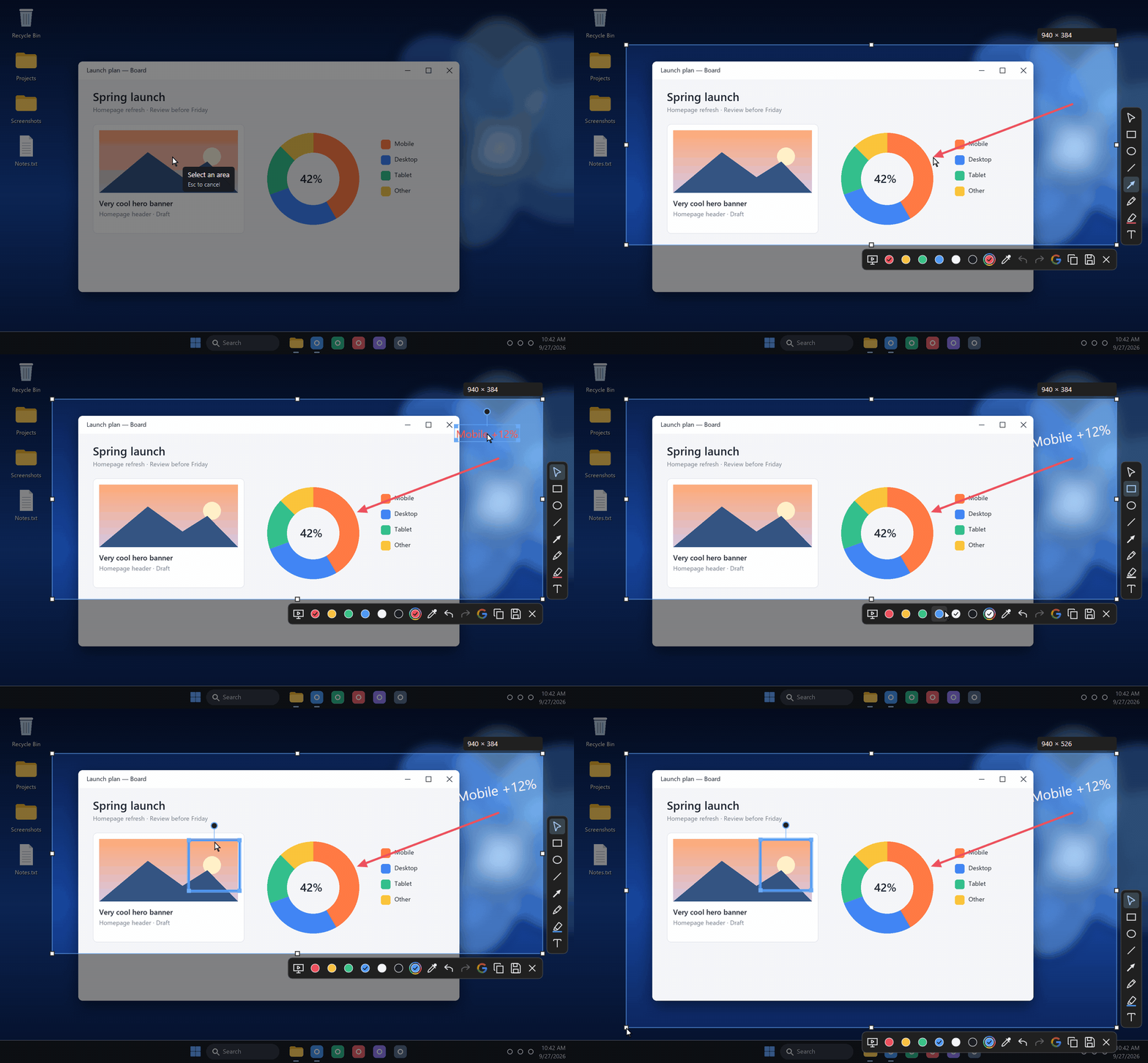
One area. A few annotations. Your message is ready.APP PREVIEW ↗
Built for WindowsNo Shot Shot accountScreenshots stay local by defaultIndependent project
01 — EVERY DETAIL
Nothing is final until you say so.
Most screenshot tools flatten what you draw the moment you draw it. In Shot Shot, every arrow, box and word stays editable until you copy or save.
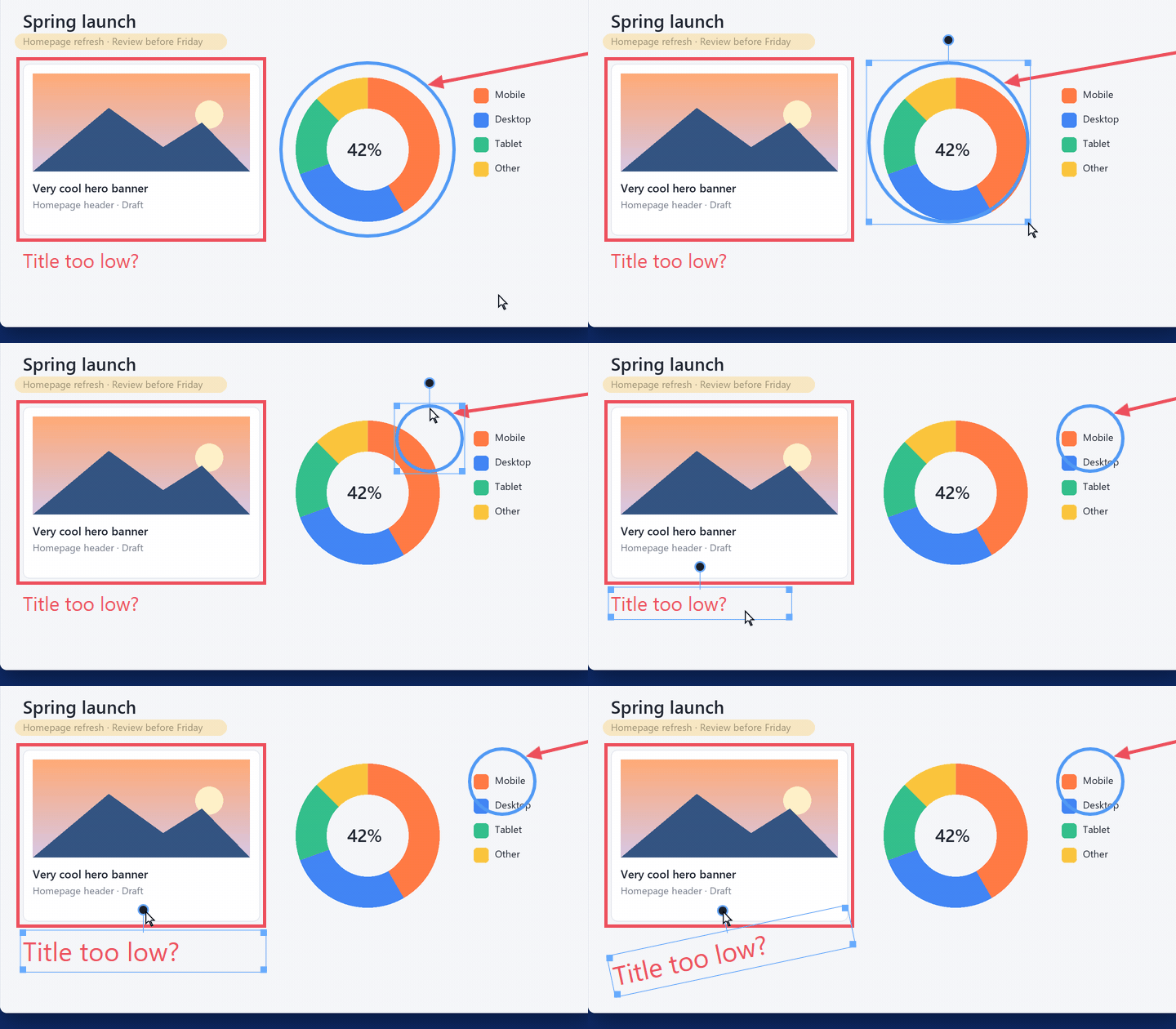
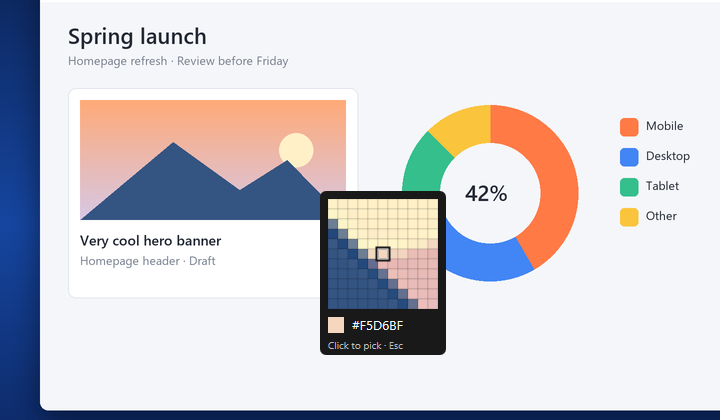
Still editable. Shrink a circle, drop it somewhere else: the arrow bound to it follows. Then enlarge a note you already wrote, and tilt it.The eyedropper. Hover any pixel on screen and the loupe shows it up close. One click copies its hex code to your clipboard: grab the exact color of any website, game or image, ready to paste.
Edit after the fact
Change your mind without starting over.
Select what you drew VClick a shape, Shift+click to add more, or drag a box around several.
Move and nudge ←→Drag it anywhere, or nudge it by 1 px, and 10 px with Shift. Delete removes it.
Resize a shapePull a corner handle. Rotated shapes keep their proportions.
Rotate anythingTurn shapes with the round handle above them. Text rotates too.
Restyle it laterPick a color or roll the wheel: every selected shape follows, in a single undo step.
Reopen your text TClick a text you already placed to fix a typo, change its size or its color.
Copy and paste shapes CtrlVDuplicate annotations with their style, slightly offset each time.
Reframe at any time
The area you selected is never set in stone.
Resize the area afterwardsEight handles on the corners and edges. Your annotations stay put. Esc puts the area back.
Type the exact sizeClick the W × H badge and enter a size. It even does the math: 1920/2, 800+20.
Live capture F2WindowsUnfreeze the screen: videos keep playing, and copying or saving grabs the exact moment you click.
Every monitor at once WindowsSelect across all your screens in one go.
Color, precisely
Match the exact shade on screen.
Eyedropper IA magnifier shows the pixels under your pointer. Click to pick a color anywhere on screen: it becomes your color and its hex code is copied.
Color wheel CAny hue, any shade. Enter applies it, Esc cancels.
Six quick colors 1–6Red, yellow, green, blue, white and black, one key away.
Your color, remembered WindowsYour last custom color is waiting for you next time, even after a restart.
Draw with precision
Clean lines without effort.
Arrows that stick CtrlHold Ctrl or Alt while drawing an arrow or a line: its end snaps to a box or ellipse and follows it when you move, resize or rotate the shape.
Straight and square ShiftLines, arrows, pen and highlighter snap to 45°. Rectangles become squares.
From the center AltDraw a rectangle from its center. Circles are drawn from the center, and Alt turns them into ellipses.
Thickness on the wheel1 to 40 px, with a live preview ring at the pointer. Change it mid-stroke: only the rest of the line follows. On text, the wheel sets the font size.
A real highlighter HTranslucent, and overlapping strokes never get darker.
A smooth pen PLight smoothing, with no lag behind your hand.
Your thickness, remembered WindowsThe next capture starts with the width you used last.
Capture in one keystroke
When you don’t even need to annotate.
Instant capture Scroll LockWindowsThe screen you are on goes straight to your Desktop, without opening the editor. A soft blue pulse and a shutter click confirm it.
Your own shutter sound WindowsMute the click, or replace it with any WAV file you like.
Tidy file namesCapture 001.png, Capture 002.png… Numbering picks up where it left off, and never overwrites a capture.
Save where you saved last CtrlSWindowsThe save dialog reopens in your last folder with the next name ready.
Copy the clean image CtrlShiftCYour annotations are included; toolbars and handles are not.
Out of your way
A tool that stays quiet until you need it.
Undo everything CtrlZEvery change to your annotations can be undone and redone, with Ctrl+Y or Ctrl+Shift+Z.
Hide the toolbars TabSee your capture without distractions. Toolbars also move aside near screen edges.
Google Lens search CtrlGWindowsLook up what you captured. Only the selected area is sent, and only when you ask.
Your shortcuts WindowsSet capture, instant capture and the three presentation shapes to the keys you like. Conflicts are flagged.
A panic button CtrlAltEscWindowsInstantly hides every presentation aid on screen.
Ready when you are WindowsStarts with Windows and waits in the tray. No telemetry, no account.
Features marked Windows are not in the Linux preview yet.
02 — PRESENT LIVE
Show it. In the moment.
PRESENTATION MODE
Alt + F ArrowAlt + R RectangleAlt + C Circle
Three direct shortcuts. All remappable.
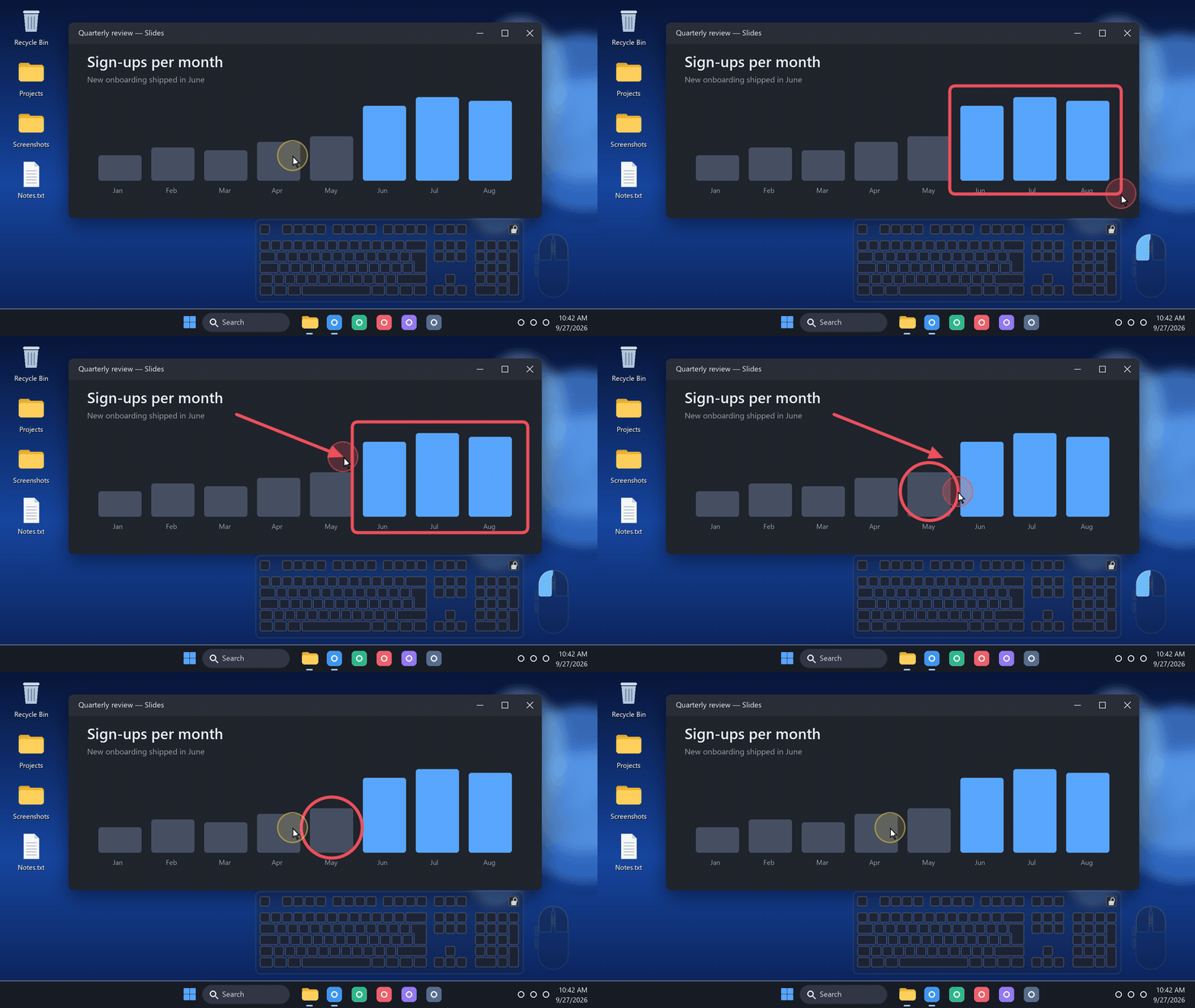
A demo, a class, a stream. This isn’t a screenshot: Shot Shot draws on a temporary layer over your live screen, and you keep working underneath. Guide people’s eyes, then it clears itself.
Streamer friendlyYour viewers see the halo, the shapes and your keys, in OBS Display Capture or any screen share. Park the keyboard away from your webcam.
A halo around the pointerSo people can follow your moves and clicks.
Shapes that fade awayArrows, rectangles and ellipses disappear after a few seconds.
Your input, visibleA mini keyboard and mouse show what you press. Put them wherever they get in your way the least.
Each tool can be turned on separately. The keyboard display is off by default.
Installer · 2.3 MB · Double-click and it’s installed. No admin rights needed.
This first version is still evolving. The installer isn’t digitally signed yet: if Windows shows “Windows protected your PC”, click “More info”, then “Run anyway”.
Linux PREVIEW
Raspberry Pi OS, Ubuntu, Fedora, Debian… on Wayland or X11.
Archive · 3.6 MB · Extract it, then run sh install.sh, no admin rights needed. Bind a keyboard shortcut to shotshot --capture in your system settings: Linux doesn’t let apps listen to the keyboard. Captures are saved straight to your Pictures folder. Not on Linux yet: presentation mode, live capture and Google Lens.
On first launch, pick your shortcut. Press it, drag over an area, then annotate. Ctrl+C copies the result; Ctrl+S saves it. The icon near the clock gives you access to the settings.
Do my captures leave my computer?
Copying and saving stay local. If you click the Google Lens search, the selected area and its annotations are sent to Google to find similar images. Nothing is ever sent automatically.
Is it a screen recorder?
No. Shot Shot captures images and shows presentation aids on your screen. You can use those aids during a class, a call or a stream, with your usual software.
Does it handle AZERTY, QWERTY and other layouts?
The mini keyboard follows the active layout of the app you are using, with accents and AltGr. French, US, UK and German layouts have been checked. The shape shortcuts can be changed.
 Shot Shot