 Shot Shot
SWITCHING FROM LIGHTSHOT
A Lightshot alternative
for Windows.
Same reflex: press a key, drag over an area, annotate, copy. Shot Shot then gives you what you reach for next: annotations you can still move, arrows that stick to shapes, an eyedropper and a live drawing mode.
Windows 11 · No account · No admin rights needed
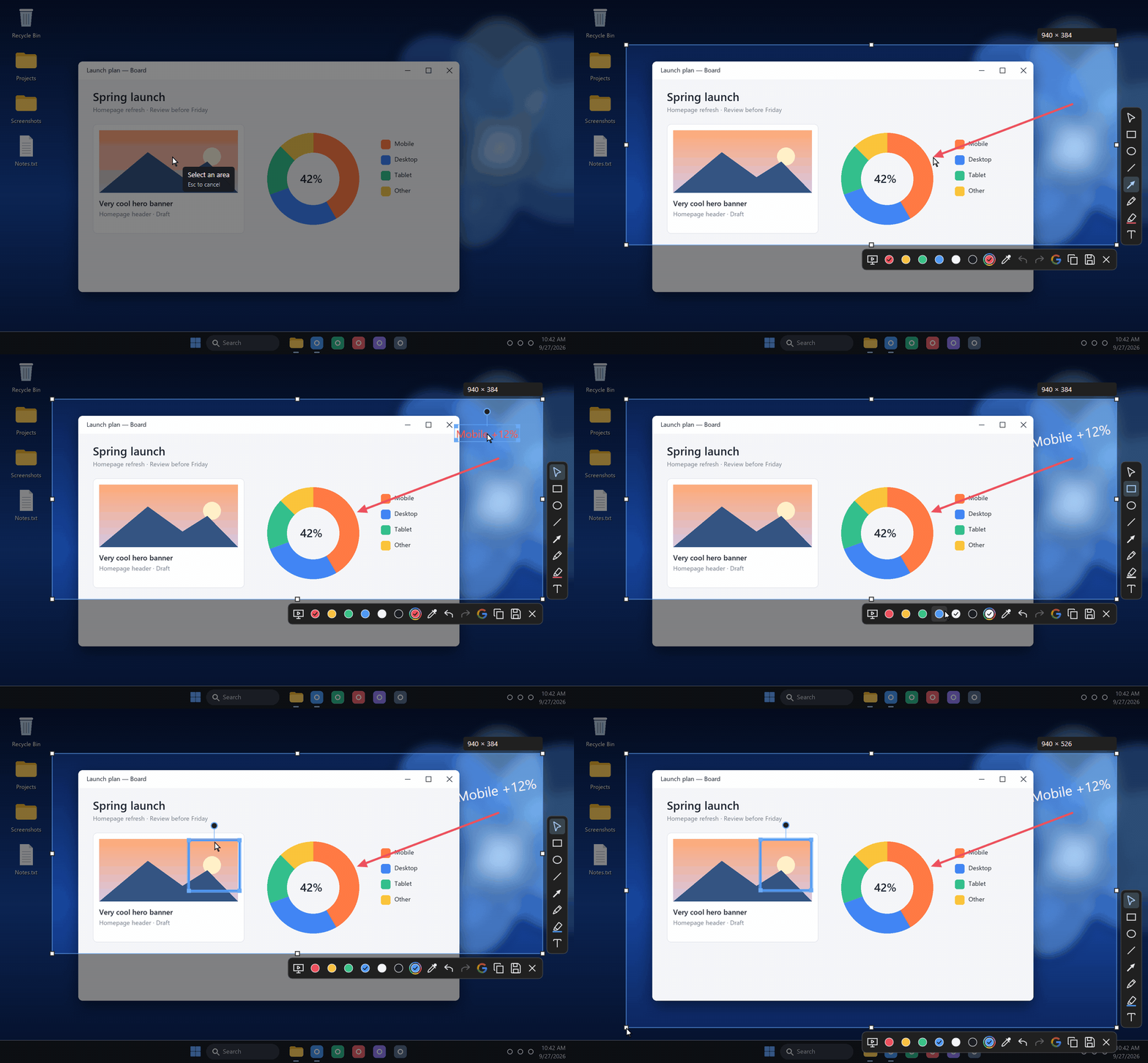
The same gesture. Nothing to relearn.
- Press Print Screen. On first launch, Shot Shot offers Print Screen as your capture key. Prefer Pause, a single letter or a combination? Any key works.
- Drag over an area. The tools sit right beside it: arrow A, rectangle R, circle O, pen P, highlighter H, text T.
- Copy or save. Ctrl+C copies the image, Ctrl+S saves a PNG. Toolbars and handles are never in the result.
Shot Shot never changes Lightshot’s settings. If Lightshot still holds Print Screen, Shot Shot tells you: quit Lightshot or pick another key.
What Shot Shot adds
- Annotations you can still changeMove, resize, rotate or recolor any arrow, box or text until you copy or save.
- Arrows that stickHold Ctrl while drawing an arrow: it snaps to a box or a circle and follows it when it moves.
- Reframe afterwardsEight handles resize the captured area. Your annotations stay put.
- An eyedropperClick any pixel on screen: it becomes your color and its hex code is copied.
- Live capturePress F2 to unfreeze the screen: videos keep playing while you frame.
- Instant captureScroll Lock saves the current screen straight to your Desktop, no editor.
- Draw on your live screenNo screenshot needed: arrows and circles over any app. See how it works.
- Undo everythingCtrl+Z and Ctrl+Y cover every change to your annotations.
Your screenshots stay on your PC
Shot Shot has no upload and no share link: copying and saving stay local. Paste the image straight into Discord, Slack, Teams or an email. The only feature that sends anything is the Google Lens search (Ctrl+G): it sends the selected area, and only when you click it. No account, no telemetry.
Good to know
Is Shot Shot free?
Yes. Shot Shot is an independent project by Mickaël Mancini. Support is optional.
Can I keep Lightshot installed?
Yes. Both can live side by side as long as they use different keys. Shot Shot starts with Windows and waits near the clock, like Lightshot.
Is there a Linux version?
A Linux preview runs on Raspberry Pi OS, Ubuntu, Fedora and Debian, on Wayland or X11. Presentation mode, live capture and Google Lens are Windows only for now.